Codex Setup Guide (VS Code)
Install Codex plugin in VS Code and connect to platform API
1
Install Codex Plugin
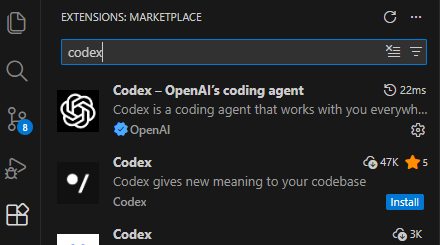
Search "Codex" in VS Code extension marketplace and install the first official OpenAI plugin.
2
Edit config.toml
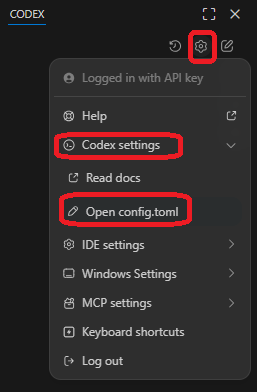
Click the settings icon in Codex panel, select "Open config.toml", and configure as below.
model_provider = "codex"
model = "gpt-5.3-codex"
disable_response_storage = true
model_reasoning_effort = "medium"
windows_wsl_setup_acknowledged = true

[model_providers.codex]
name = "codex"
base_url = "https://token.bitbeam.cn/v1"
wire_api = "responses"
requires_openai_auth = true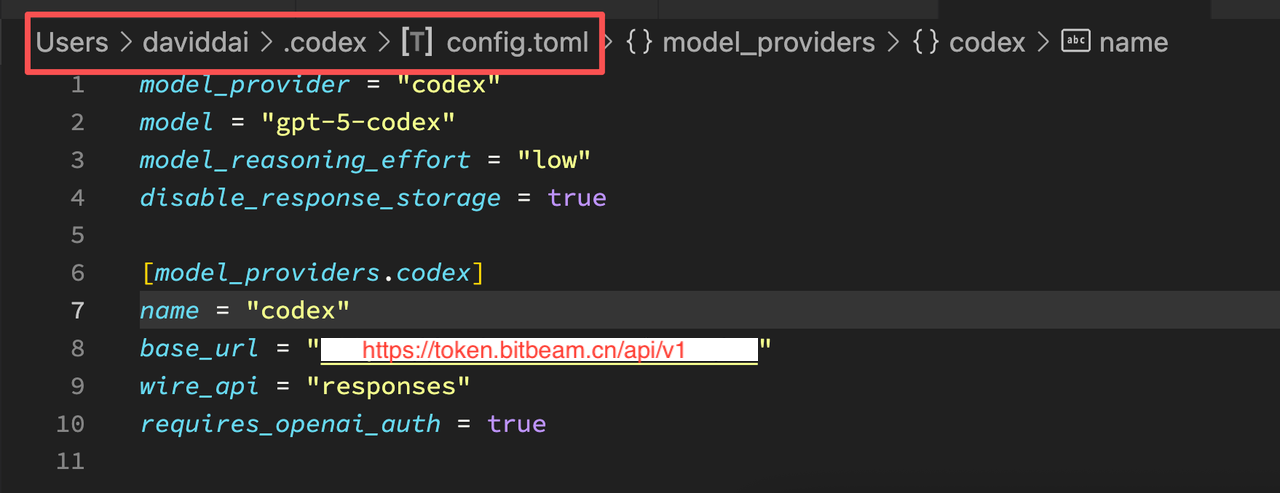
3
Configure API Key
Create an auth.json file in the same directory as config.toml with your platform API Key.
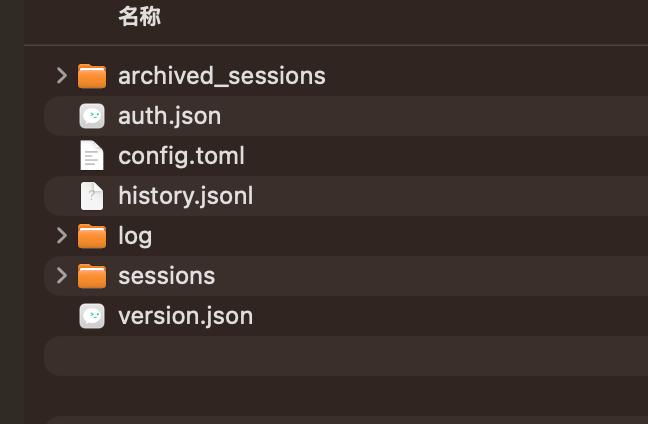
Create auth.json in the .codex directory:
{
  "OPENAI_API_KEY": "your-api-key"
}4
Activate
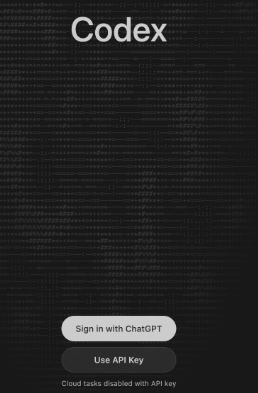
Return to Codex panel and click "Use API Key" to activate.